Our Walking Dead (aka ImageSpark)


Our Walking Dead (aka ImageSpark)

December 11, 2012 • 52 Comments • • 
Thumbs Down

History

In September of 2008, one of our designers, Greg Washington, began discussing a frustration he had. When starting any design project he would assemble a collection of images. These images are the foundational design research he would do before opening Photoshop or sketching. Over years of projects he collected dozens of folders of loose images on his hard drive.
Most designers maintain private collections of visual inspiration and research to fuel their creative process. Their typical workflow involved going out on the Web and downloading images to a local folder. There these images would sit with a bunch of other badly named files like img4065.jpg and fre566ba01.tif. If highly motivated, designers might bring those images into another program like Illustrator, InDesign, Photoshop or Keynote to create a “moodboard”. These files—both the individual files and the moodboards—might get printed once, or thrown into the depths of a server only to be lost.
Greg was looking for an easier way to find, organize and store images that would serve as creative inspiration. He wanted to be able to easily share these images and see what other designers were using as inspiration. He wanted to be able to network those folders that he knew were sitting on everyone’s computers.
We loved the idea and decided to put some effort behind building a site that could do this. Through October, November and December of 2008 about 4 people worked on a site that we called Image Spark. It launched in January of 2009.

Continue reading...Our Walking Dead (aka ImageSpark) | Teehan+Lax


Android: How to Delete All Contacts


Android: How to Delete All Contacts

If you wish to delete all contacts from your Android device, it can be tedius to delete them one-by-one. There is a quicker way to clear them all out though. Just use one of these methods.

Method 1 – Clear data on the device

1. Disable syncing by going to Settings > Accounts & sync. Select your Google account and uncheck Contacts. If you sync contacts with other apps such as Facebook or Twitter, be sure to disable syncing for those apps as well.
Android uncheck sync contacts
2. Go to Settings > Applications > Manage applications > All > Contacts Storageand select Clear data.
Note: This will also clear other data like your recent calls and Favorites.
Andorid clear storage from Contacts Storage

Method 2 – Delete all contacts from the account you sync with

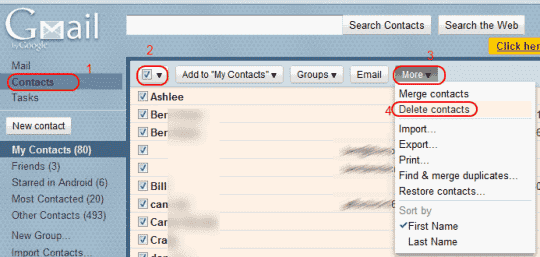
If you don’t mind losing your contacts in your account as well as your phone, delete all of the contacts from the account your Android syncs with using your computer. For example, if you sync your Android with Google Contacts, sign into Gmail and follow these steps:
1. Select Contacts on the left pane.
2. Check the box at the top of the left row to select all contacts.
3. Select More > Delete contacts.
Delete all contacts from Gmail
The next time your Android automatically syncs with Google, they will be completely cleared.

Android: How to Delete All Contacts — Technipages:

'via Blog this'

Auto Filter depending on Cell Value

Hello, 
I have data in a table, lets say the table is (A7:M200) and the Headings in this table is (A7:M7). Column 1 (A8:A200) is the accounts numbers. I already selected the Row 7 (the headings in this table) then I made Auto filtering. Now my request is when I write in Cell (E1) any account number to filter that table (A8:M200) according to this selection in E1. Thank you in advance for any kind assistant. Issa
1. Open the file 
2. Press ALT + F11 
3. Press CTRL + R 
4. Double click on the sheet where you want this functionality 
5. Paste the code 

Private Sub Worksheet_Change(ByVal Target As Range) 
   If (Intersect(Target, Range("E1")) Is Nothing) _ 
   Then 
      Exit Sub 
   End If 
   Cells.AutoFilter Field:=1, Criteria1:="=" & Range("E1") 
End Sub


This is based on assumption that you want to filter the 1st column (column A). Change value of "Field" to point to right column 

By the way you can use wild card in E1 like 
1234* ( some thing that starts with 1234) 
123?56??? (some thing that start with 123, then has some character, followed by 56 followed by three charachters 
*1234* (some thing that has 1234 some where)

Private Sub Worksheet_Change(ByVal Target As Range)
If (Intersect(Target, Range("E1")) Is Nothing) _
Then
Exit Sub
End If
Cells.AutoFilter Field:=1, Criteria1:="=" & Range("E1")
End Sub

This is based on assumption that you want to filter the 1st column (column A). Change value of "Field" to point to right column 

By the way you can use wild card in E1 like 
1234* ( some thing that starts with 1234) 
123?56??? (some thing that start with 123, then has some character, followed by 56 followed by three charachters 
*1234* (some thing that has 1234 some where)

This is based on assumption that you want to filter the 1st column (column A). Change value of "Field" to point to right column 
By the way you can use wild card in E1 like 
1234* ( some thing that starts with 1234) 
123?56??? (some thing that start with 123, then has some character, followed by 56 followed by three charachters 
*1234* (some thing that has 1234 some where)

By the way you can use wild card in E1 like 
1234* ( some thing that starts with 1234) 
123?56??? (some thing that start with 123, then has some character, followed by 56 followed by three charachters 
*1234* (some thing that has 1234 some where)


Download example  here....

Source:  http://en.kioskea.net/forum/affich-607114-auto-filter-depending-on-cell-value